> ## Documentation Index
> Fetch the complete documentation index at: https://docs.sellagent.ai/llms.txt
> Use this file to discover all available pages before exploring further.
# Connect Google Analytics 4 to your Sell Page
> See how many people visit your Sell Page, where they come from, and how many become leads — in your own Google Analytics. No coding needed.
**Google Analytics 4 (GA4)** is Google's free tool for counting website visitors. Once it is connected to your Sell Page:
* Every visit is counted (**page\_view**).
* Every time someone fills in your lead form, it is counted as a lead (**generate\_lead**).
**You need:** a Google account (for example your Gmail). It takes about **5 minutes**.
Your Sell Page already has simple visitor stats in **Insights → Overview**. Use Google Analytics if you want the numbers in your own Google account too.
## Part 1: Get your Measurement ID from Google
Go to **[analytics.google.com](https://analytics.google.com)** and sign in with your Google account.
* **First time?** You will see **Welcome to Google Analytics**. Click **Start measuring**.
* **Already use Google Analytics?** Click **Admin** (the gear at the bottom left), then **+ Create → Account**.
No Google account yet? [Create one for free](https://accounts.google.com/signup) — a Gmail address works.
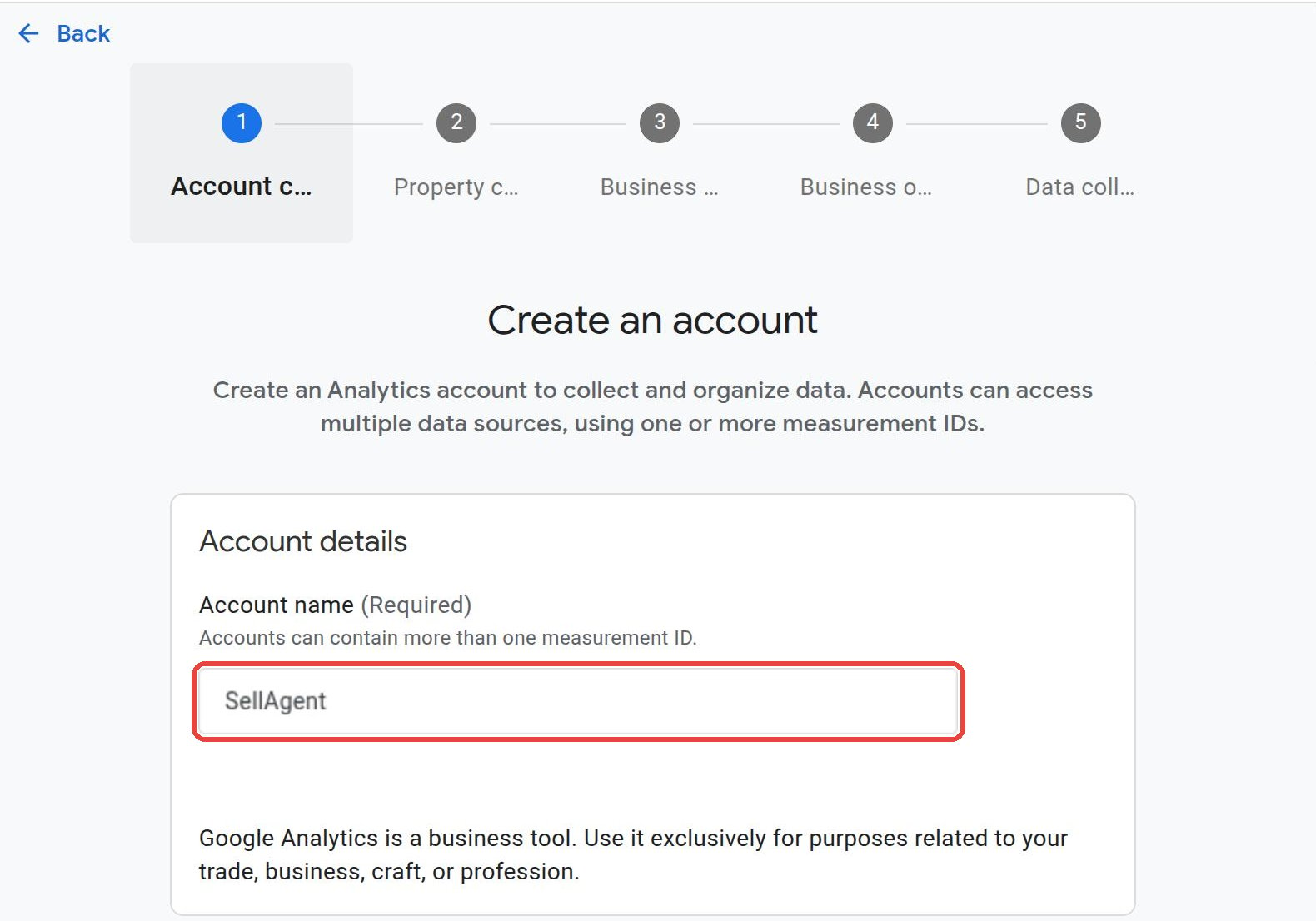
In **Account name**, type your business name, for example:
```text theme={null}
SellAgent
```
Leave the **data sharing** boxes as they are. Scroll down and click **Next**.
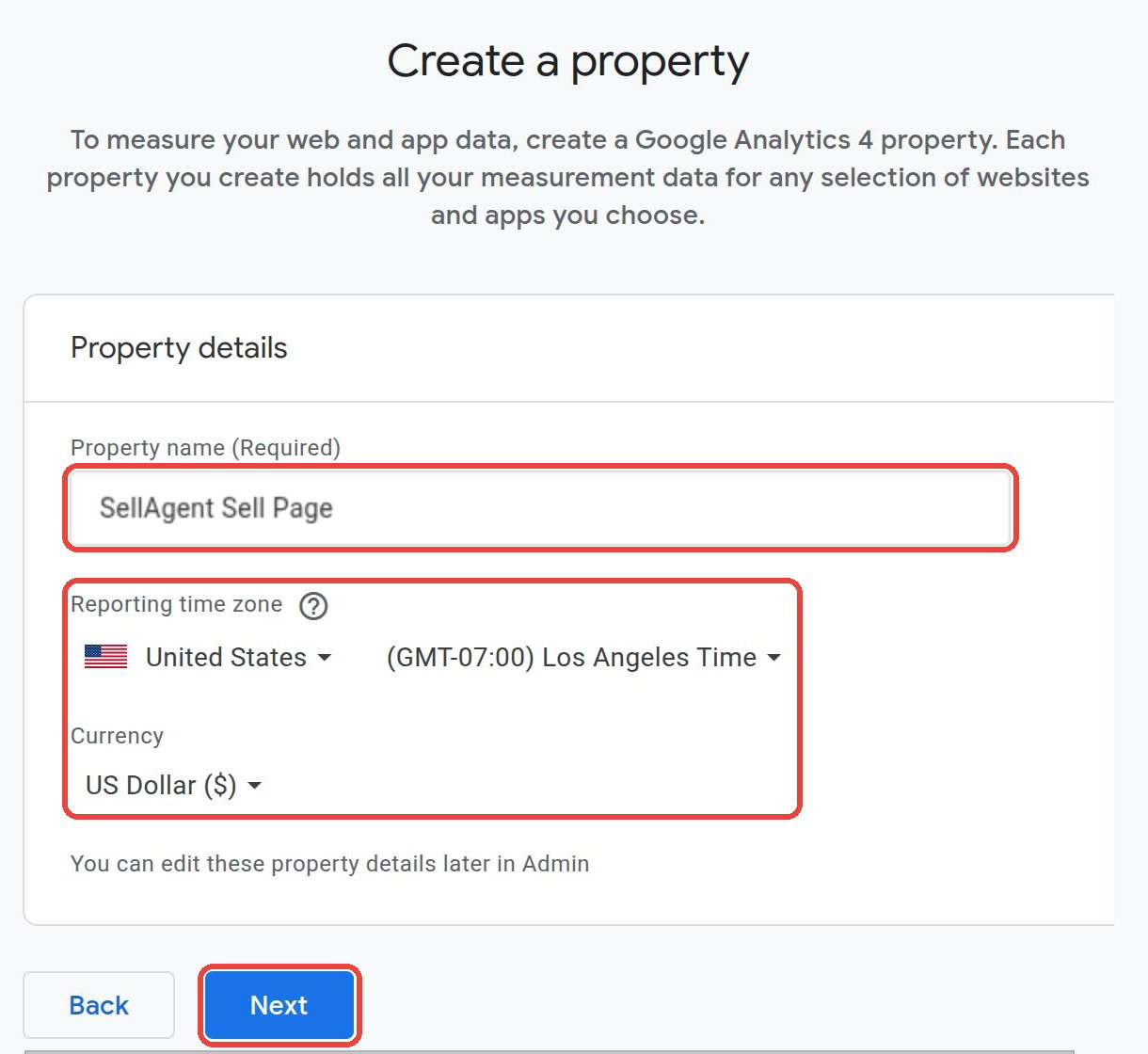
 A **property** is the place where your Sell Page's numbers are kept.
1. **Property name:** type
```text theme={null}
SellAgent Sell Page
```
2. **Reporting time zone:** choose your country and time zone.
3. **Currency:** choose your currency.
4. Click **Next**.
A **property** is the place where your Sell Page's numbers are kept.
1. **Property name:** type
```text theme={null}
SellAgent Sell Page
```
2. **Reporting time zone:** choose your country and time zone.
3. **Currency:** choose your currency.
4. Click **Next**.
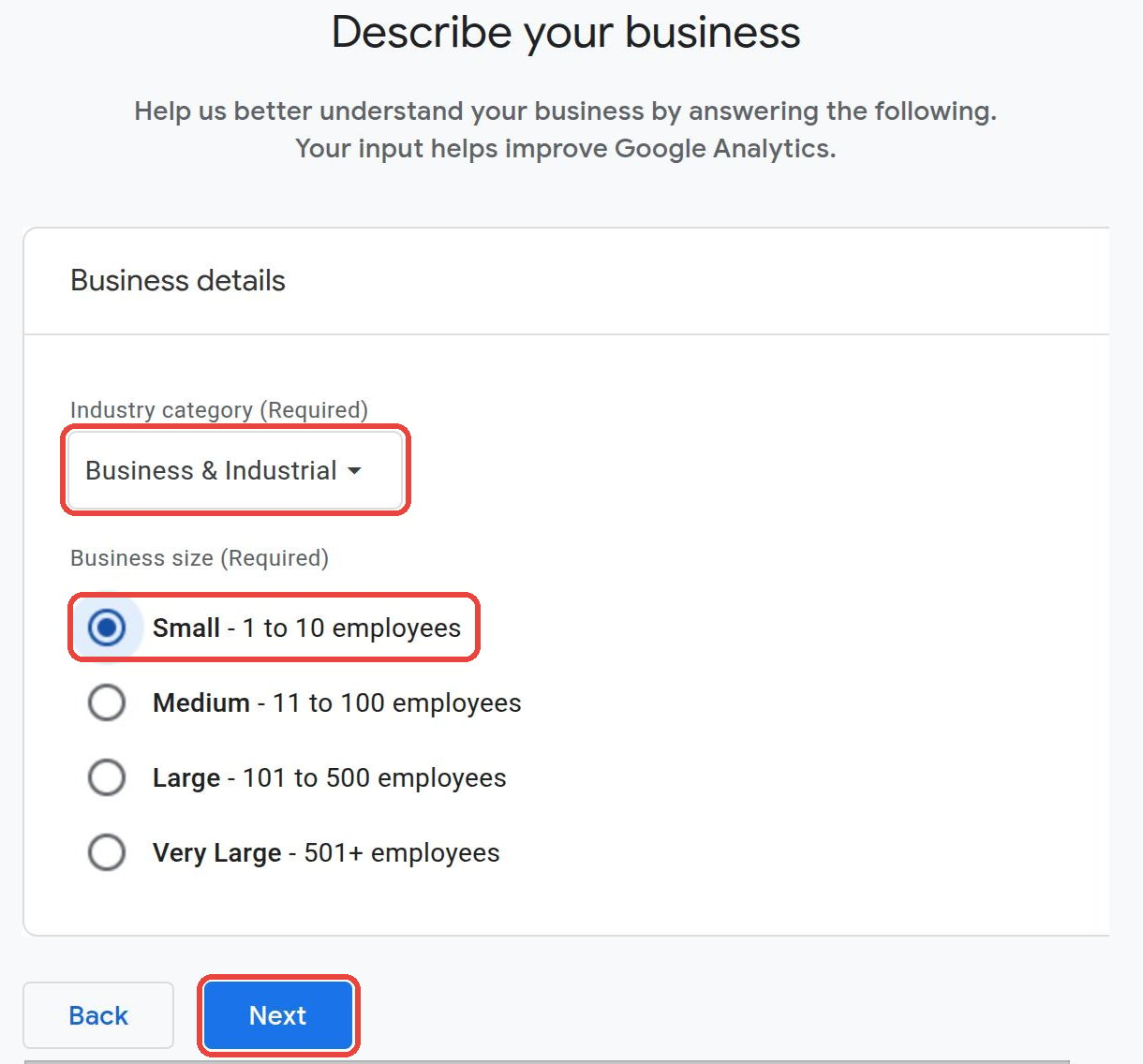
 1. **Industry category:** pick the one closest to your business.
2. **Business size:** pick your team size (for example **Small**).
3. Click **Next**.
1. **Industry category:** pick the one closest to your business.
2. **Business size:** pick your team size (for example **Small**).
3. Click **Next**.
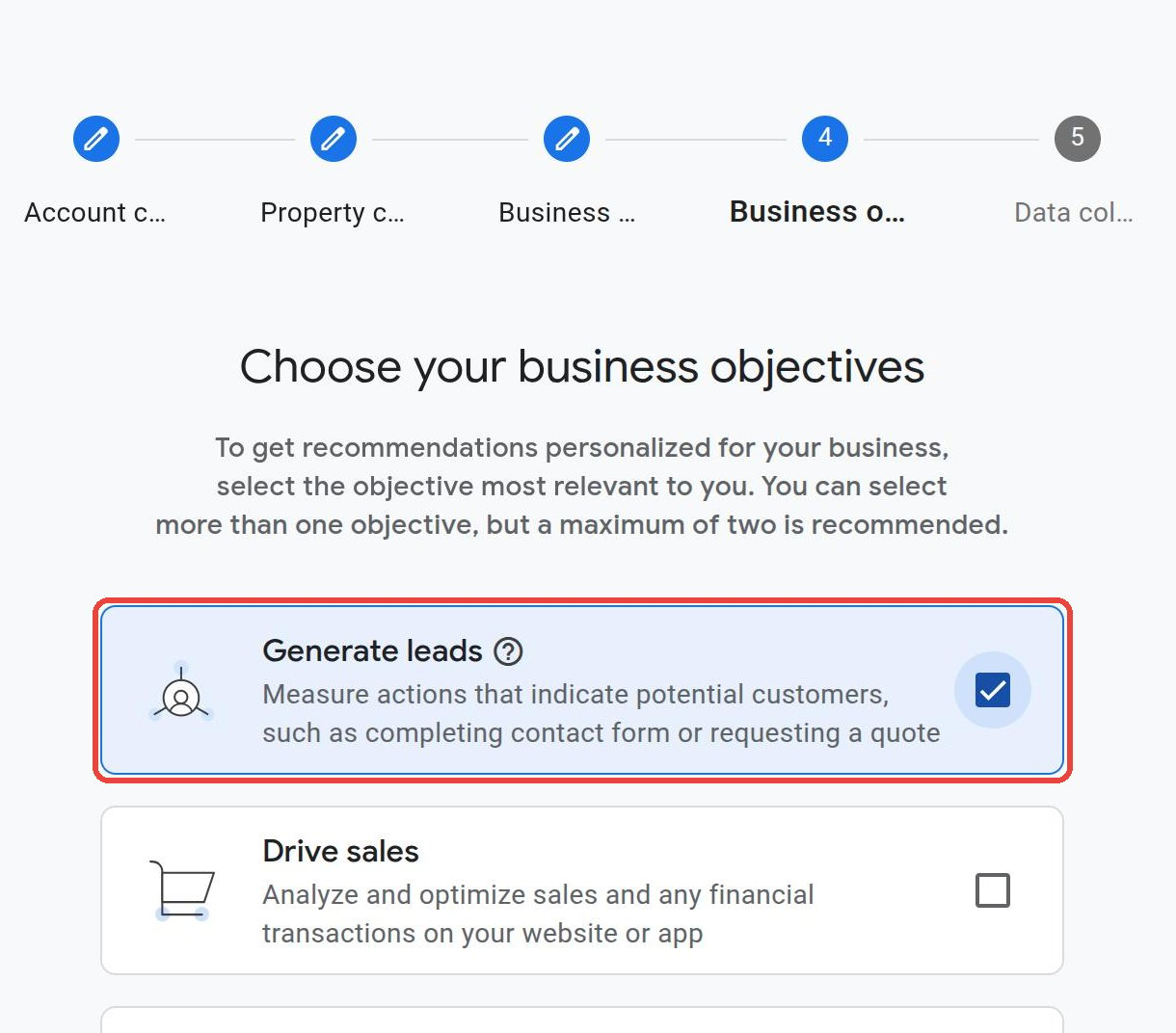
 Tick **Generate leads** — that's what your Sell Page does. Then scroll down and click **Create**.
 A window with Google's terms opens. Choose your country, tick the box(es) to agree, and click **I Accept**.
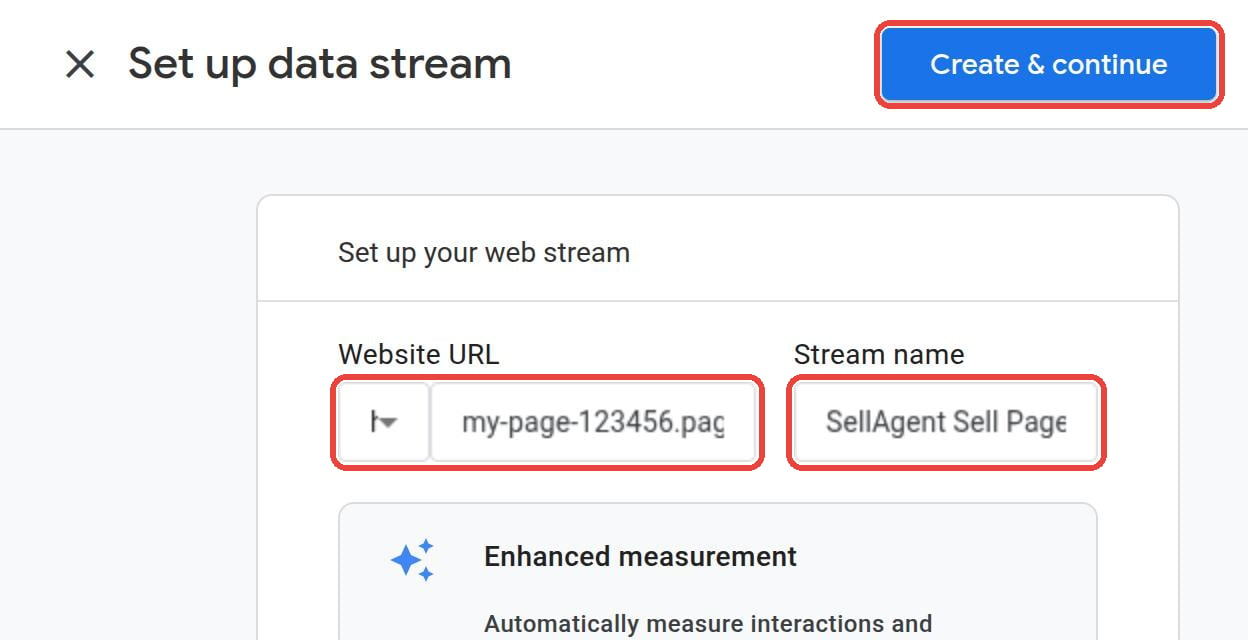
Google asks where your data comes from. Click **Web**, then fill in:
| Field | What to type |
| - | - |
| **Website URL** | Your Sell Page address without `https://`, for example `my-page-123456.pages.sellagent.co`. Copy it from the **Publish** button in SellAgent. |
| **Stream name** | `SellAgent Sell Page` |
Click **Create & continue** at the top right.
A window with Google's terms opens. Choose your country, tick the box(es) to agree, and click **I Accept**.
Google asks where your data comes from. Click **Web**, then fill in:
| Field | What to type |
| - | - |
| **Website URL** | Your Sell Page address without `https://`, for example `my-page-123456.pages.sellagent.co`. Copy it from the **Publish** button in SellAgent. |
| **Stream name** | `SellAgent Sell Page` |
Click **Create & continue** at the top right.
 Google may first show **installation instructions** with a block of code. **You don't need the code** — SellAgent adds it for you. Close that window with the **X**.
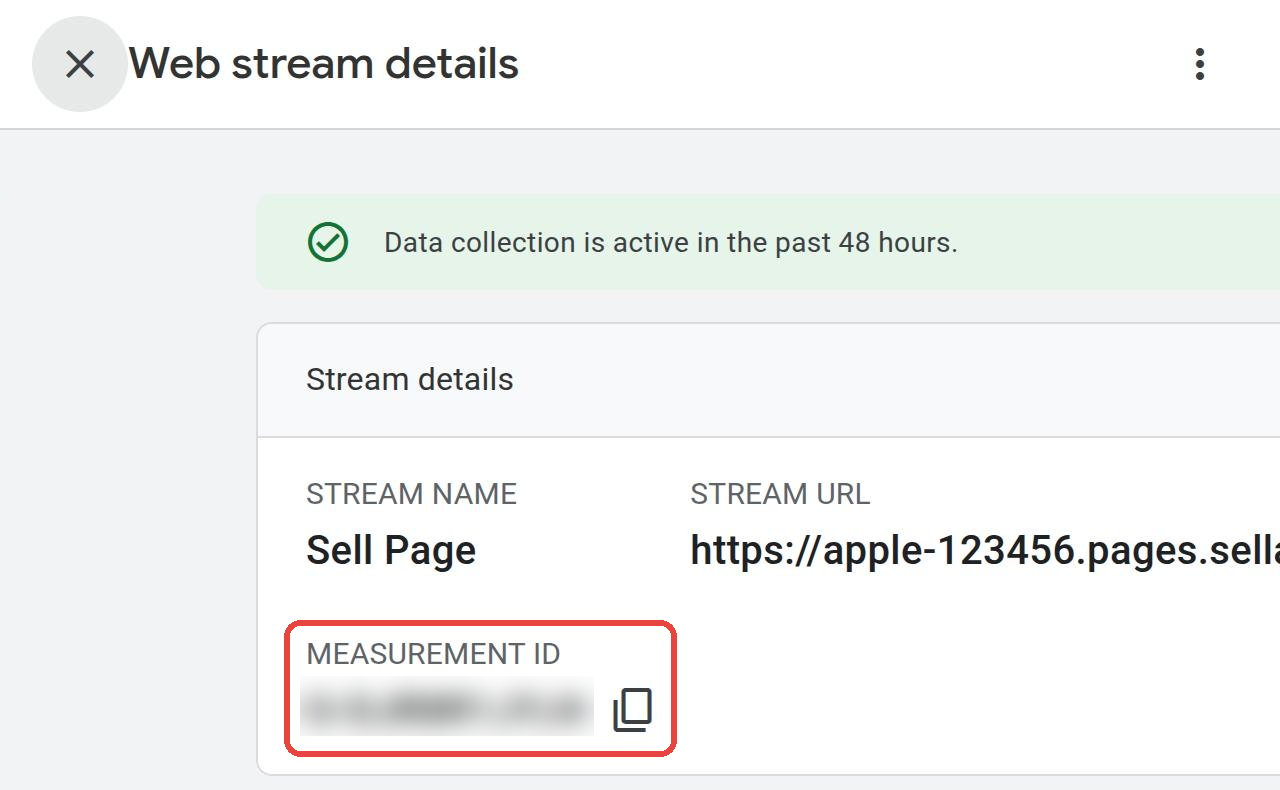
You now see **Web stream details**. Your **Measurement ID** starts with **G-** (for example `G-AB12CD34EF`). Click the **copy** icon next to it.
Google may first show **installation instructions** with a block of code. **You don't need the code** — SellAgent adds it for you. Close that window with the **X**.
You now see **Web stream details**. Your **Measurement ID** starts with **G-** (for example `G-AB12CD34EF`). Click the **copy** icon next to it.
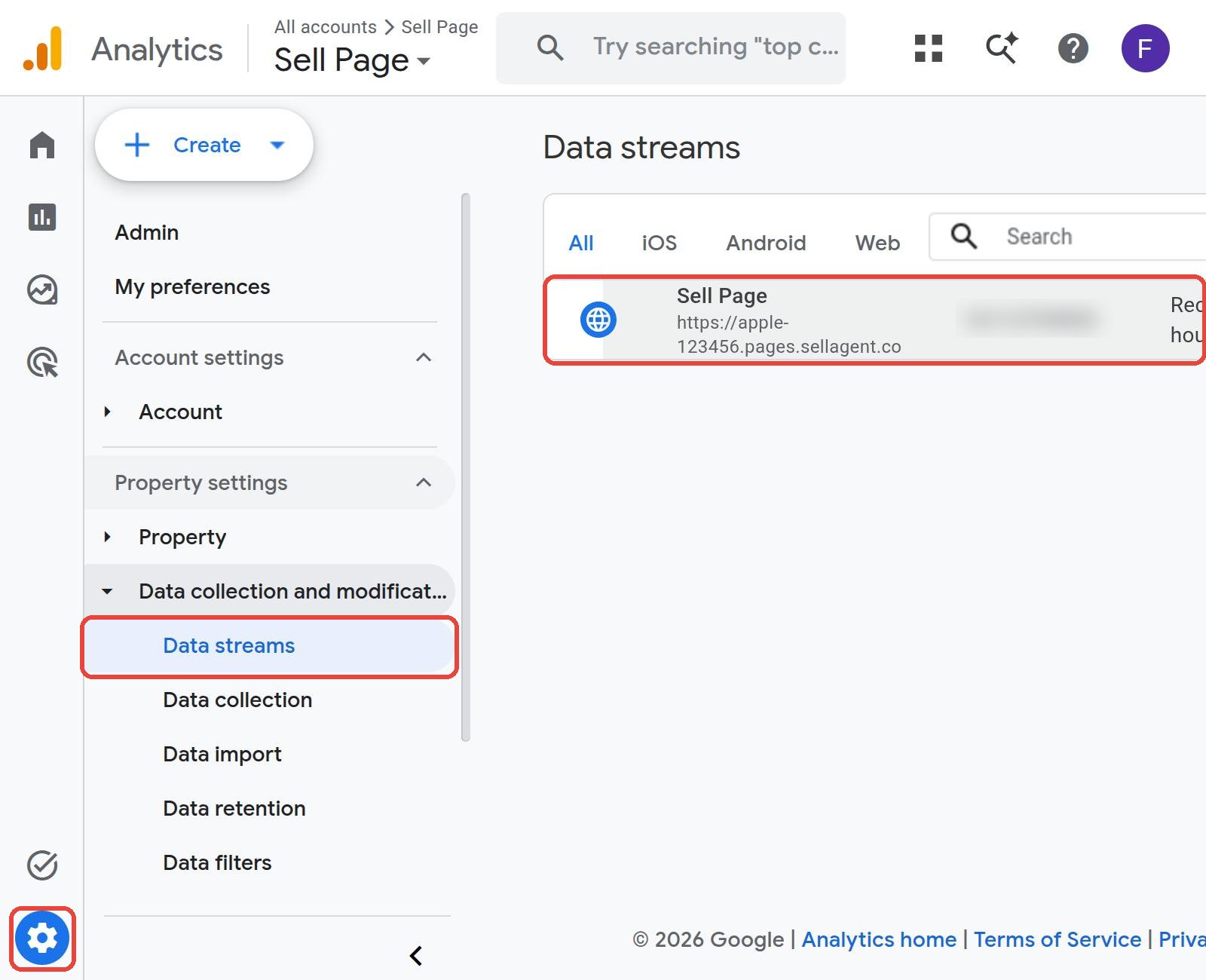
 **Can't find your Measurement ID later?** Click **Admin** (gear at the bottom left) → **Data streams**, then click your stream. The ID is on the screen that opens.
 ## Part 2: Add the Measurement ID to your Sell Page
In SellAgent, open your Sell Page. Click **Insights** at the top, then **Integrations** on the left.
## Part 2: Add the Measurement ID to your Sell Page
In SellAgent, open your Sell Page. Click **Insights** at the top, then **Integrations** on the left.
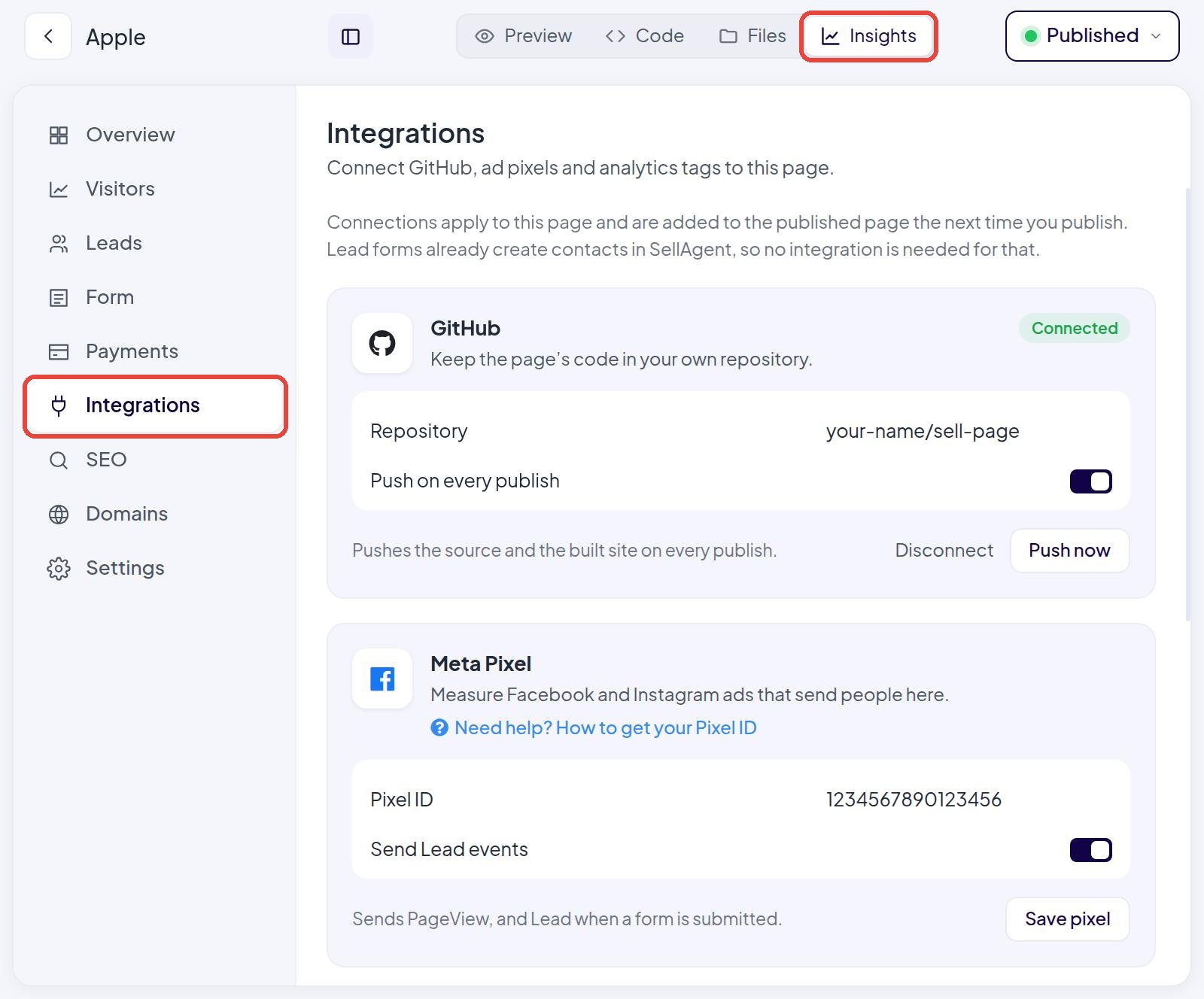 In the **Google Analytics 4** card, paste your ID into **Measurement ID** and click **Save**.
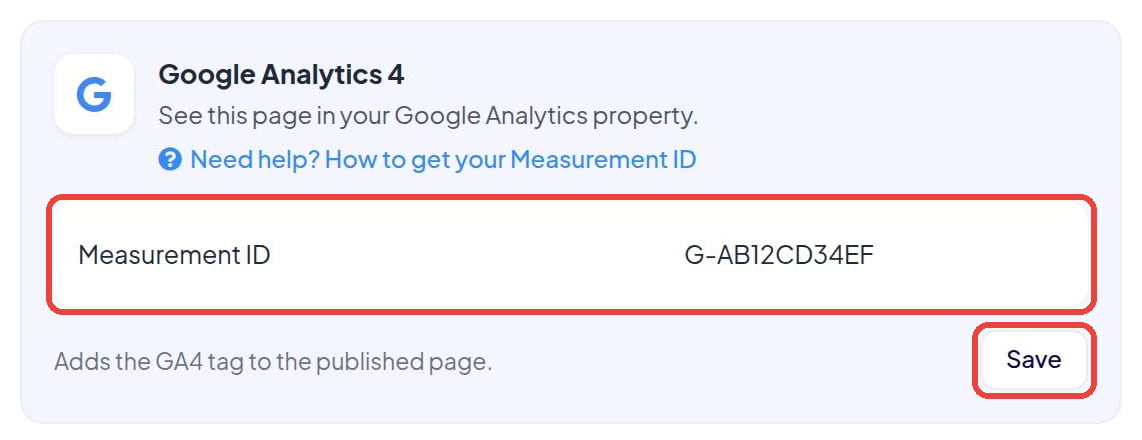 The card now shows a green **Connected** label.
Click **Publish** (or **Republish**) at the top right. Google Analytics only starts counting on your live page after you publish.
## Part 3: Check that it works
Open your published Sell Page. Turn off any **ad blocker** first — ad blockers stop Google Analytics from counting you.
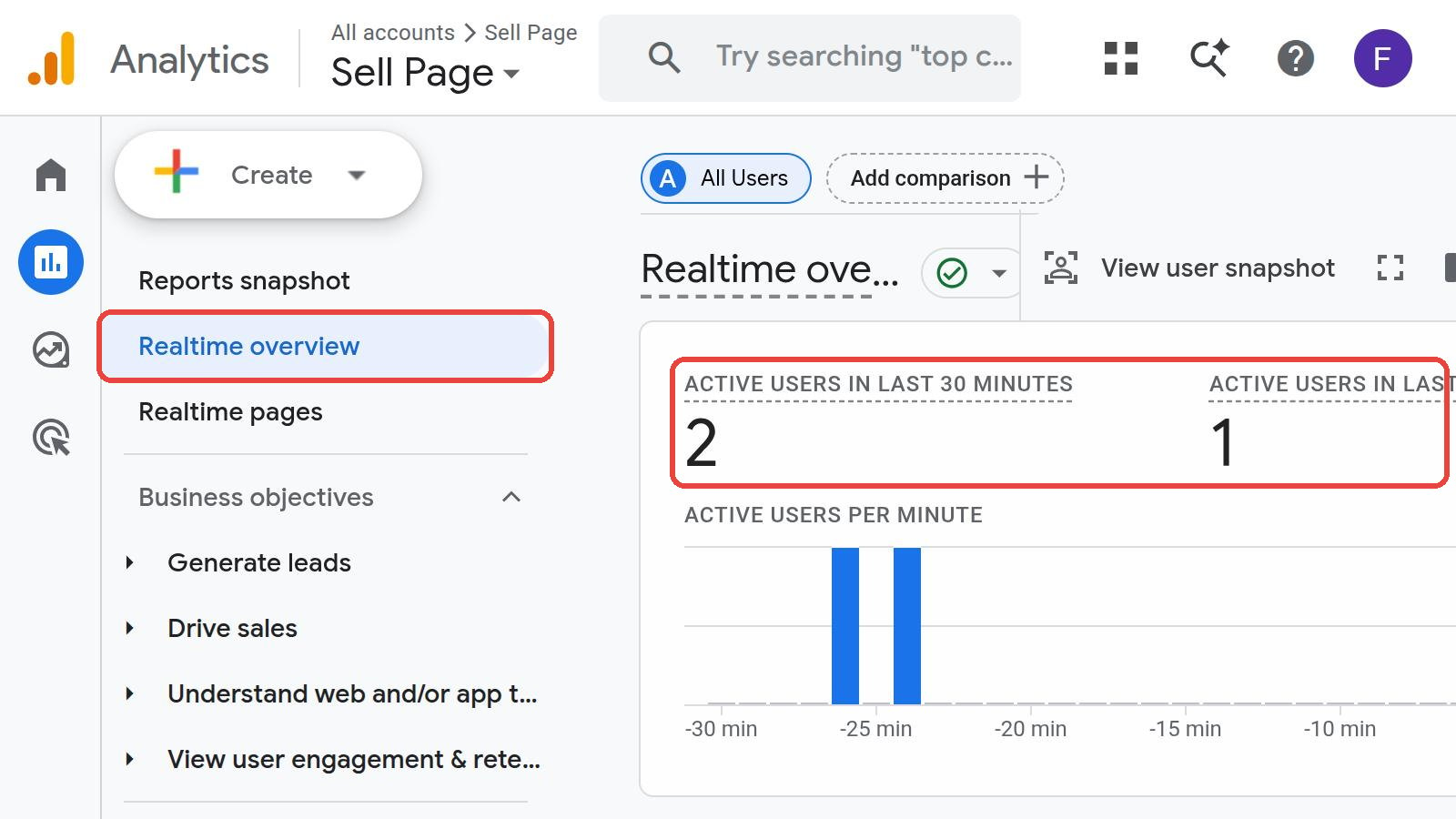
In Google Analytics, click **Reports** (the chart icon on the left), then **Realtime overview**. Within a minute you should see **at least 1 active user** (you).
Fill in your page's lead form — **generate\_lead** appears under **Event count by Event name**.
The card now shows a green **Connected** label.
Click **Publish** (or **Republish**) at the top right. Google Analytics only starts counting on your live page after you publish.
## Part 3: Check that it works
Open your published Sell Page. Turn off any **ad blocker** first — ad blockers stop Google Analytics from counting you.
In Google Analytics, click **Reports** (the chart icon on the left), then **Realtime overview**. Within a minute you should see **at least 1 active user** (you).
Fill in your page's lead form — **generate\_lead** appears under **Event count by Event name**.
 The normal reports on the **Home** page take **24–48 hours** to fill in. Until then they may show 0 — that's normal. **Realtime** shows visits straight away.
## Common questions
Copy only the ID that starts with **G-** (for example `G-AB12CD34EF`) — not the whole code block and not the property number.
* Make sure you clicked **Publish** after saving the ID.
* Turn off ad blockers and open your live page again.
* Check **Reports → Realtime** — the Home page is slow to update.
It doesn't stop the counting. To fix it, go to **Admin → Data streams**, click your stream, and edit the URL.
Use **one or the other** for Google Analytics. If you load Google Analytics inside Tag Manager, leave this card empty — otherwise every visit is counted twice.
This documentation is built and hosted on [Mintlify](https://mintlify.com), a developer documentation platform.
The normal reports on the **Home** page take **24–48 hours** to fill in. Until then they may show 0 — that's normal. **Realtime** shows visits straight away.
## Common questions
Copy only the ID that starts with **G-** (for example `G-AB12CD34EF`) — not the whole code block and not the property number.
* Make sure you clicked **Publish** after saving the ID.
* Turn off ad blockers and open your live page again.
* Check **Reports → Realtime** — the Home page is slow to update.
It doesn't stop the counting. To fix it, go to **Admin → Data streams**, click your stream, and edit the URL.
Use **one or the other** for Google Analytics. If you load Google Analytics inside Tag Manager, leave this card empty — otherwise every visit is counted twice.
This documentation is built and hosted on [Mintlify](https://mintlify.com), a developer documentation platform.