
Steps
1
Create Elastic SIP Trunk
-
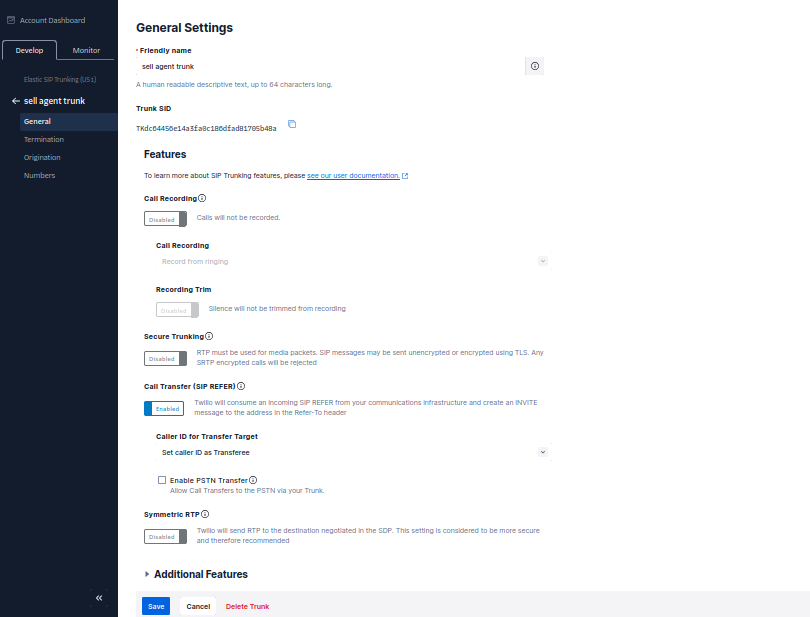
Create the trunk, give it a name, and toggle some general settings
- Name it (e.g., “sell agent trunk”)
-
Configure Termination (this is for outbound)
- the termination SIP URI here is important, we would use it in later steps. You might want to use a localized termination uri that’s near your region. You can expand and view your localized uris in the twilio console.:
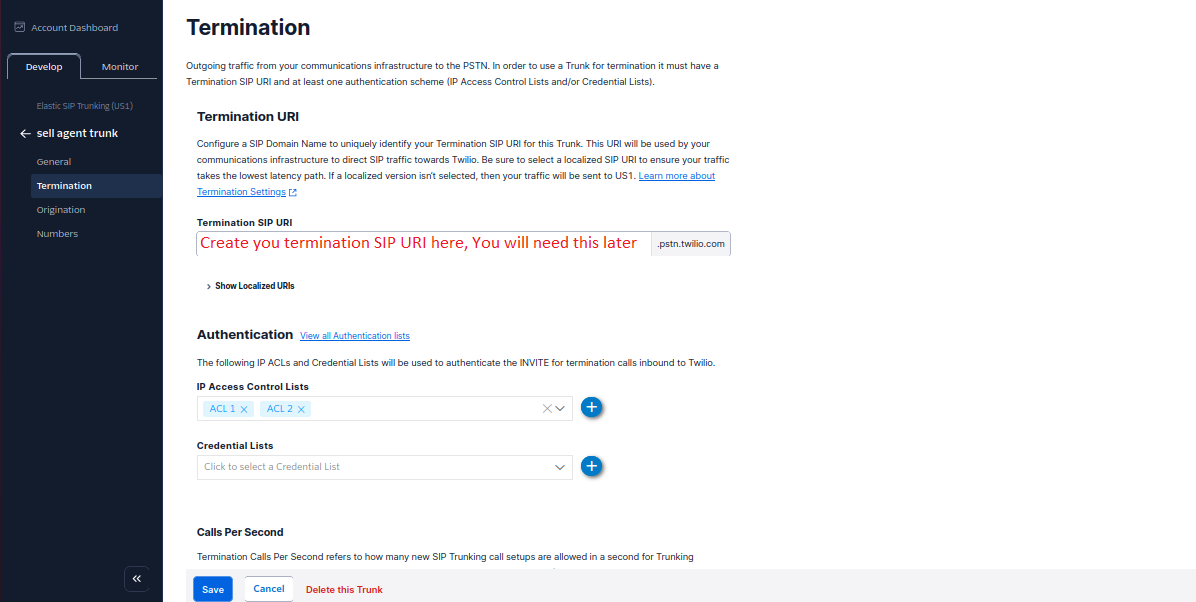
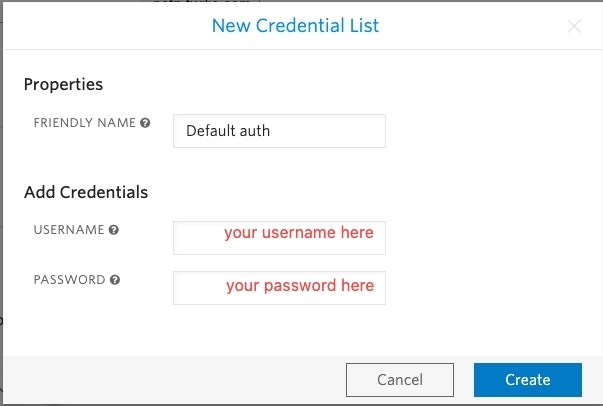
- For your elastic SIP trunk to accept our outbound request, you need to whitelist IP address or create a auth with username and password.
- If you opt for the auth route, you need to specify the username and password in the next step when importing the number to Sell Agent.
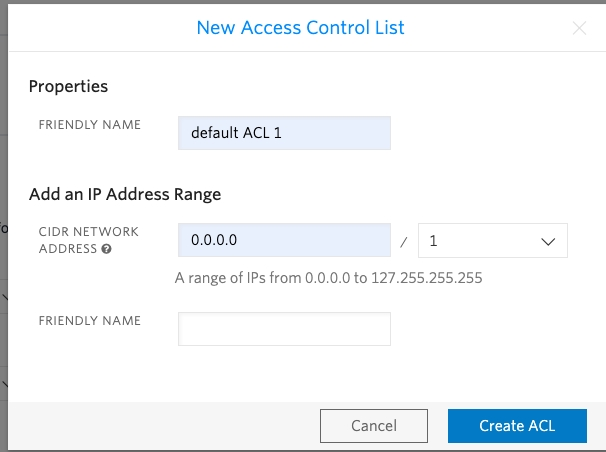
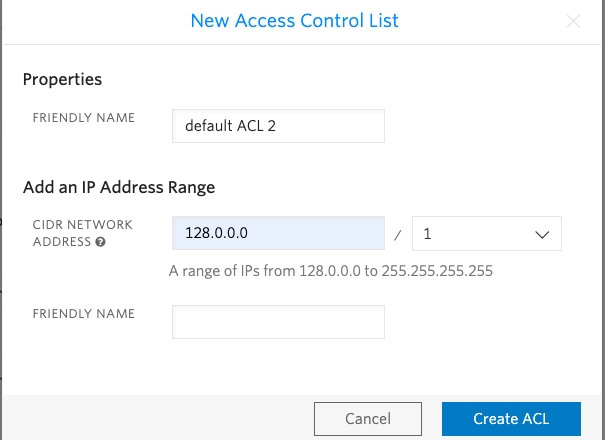
- Currently Sell Agent SIP server does not have a static IP, so if you opt for the IP route, you need to whitelist all the IP addresses in the range like following:
- If you opt for the auth route, you need to specify the username and password in the next step when importing the number to Sell Agent.
- Configure Origination (this is for Inbound)
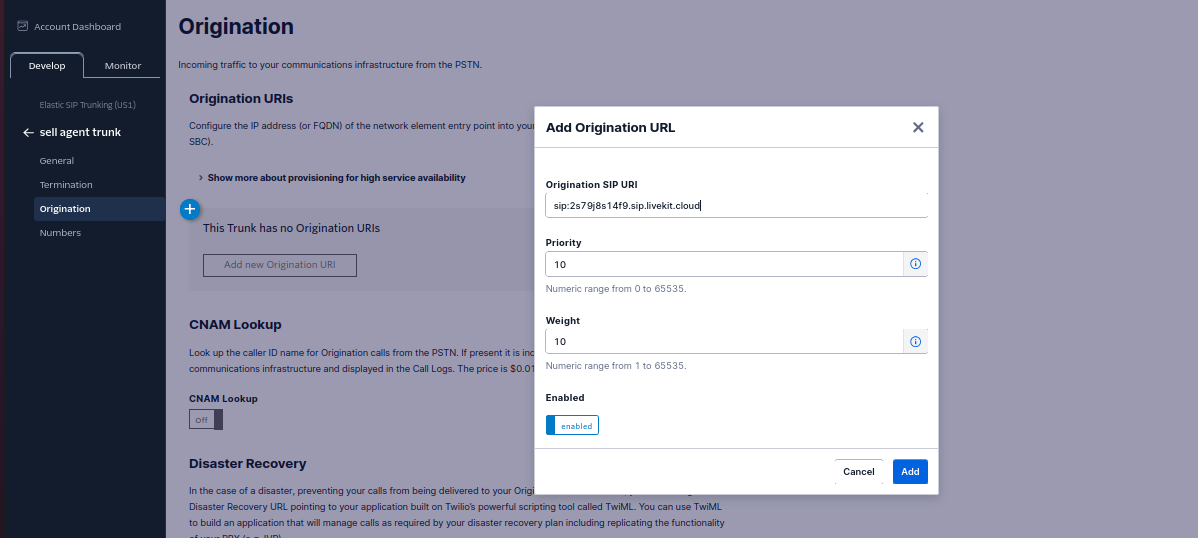
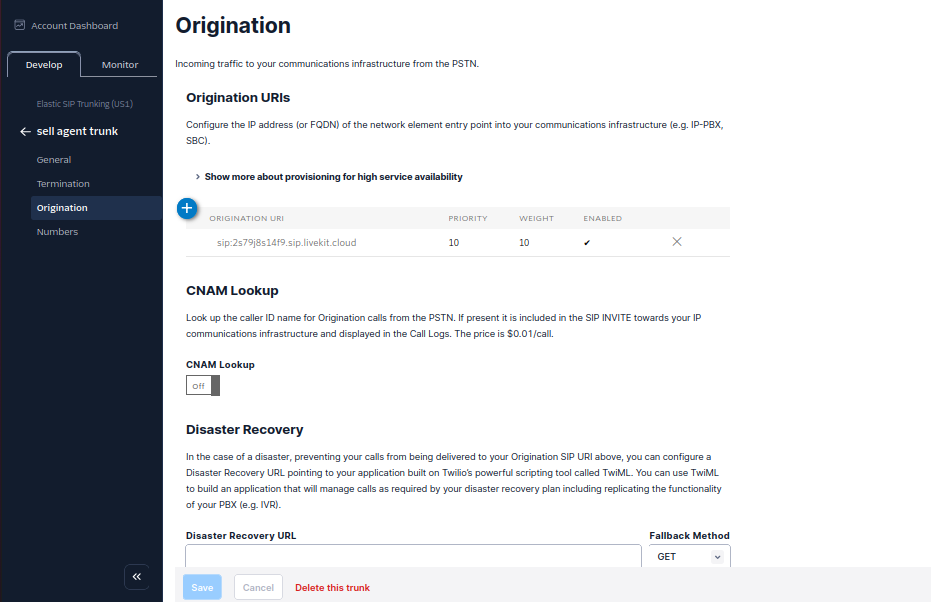
- Here you will specify Sell Agent’s SIP server address as the origination SIP URI:
- Here you will specify Sell Agent’s SIP server address as the origination SIP URI:
2
Move numbers to Elastic SIP Trunking
You’ve created the elastic SIP trunk, now you would need to purchase numbers / move existing numbers to this trunk.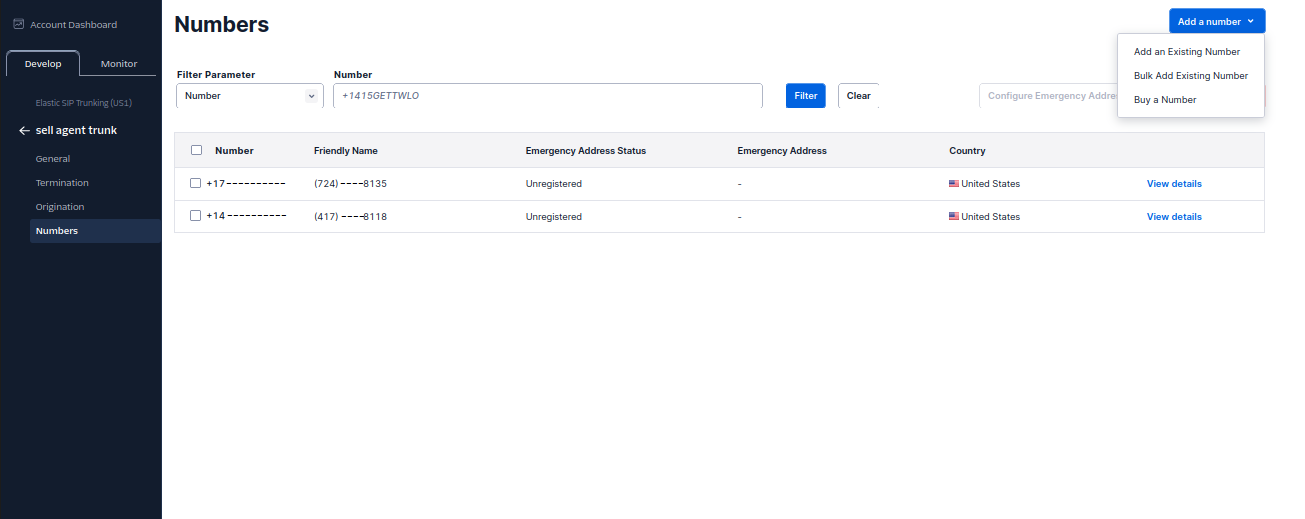
3
Import to Sell Agent
Now the number is set up with your elastic SIP trunking, you need to import the number to Sell Agent so that we will know how to route the call.
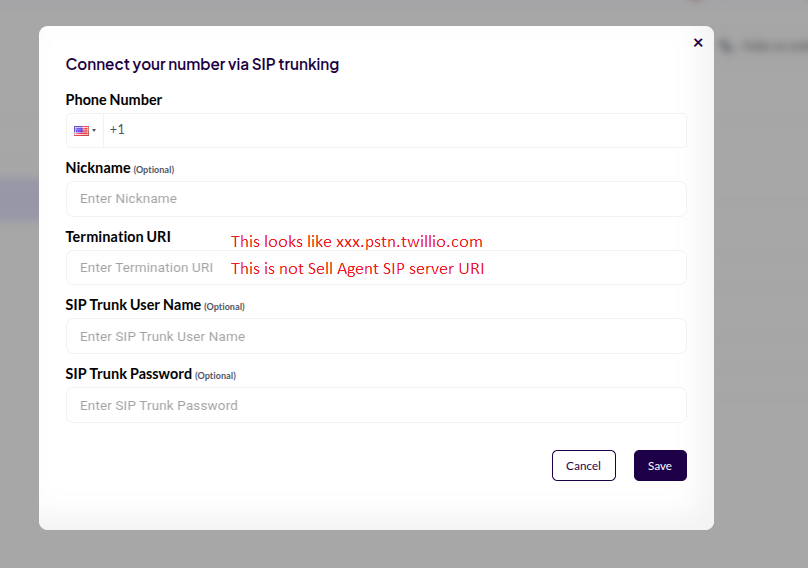
Create Phone Number API.Now the number is imported, you can make and receive calls with this number — it will show up in your dashboard, and you can make phone calls from Dashboard directly. You can also use the Create Phone Call API. to create calls programmatically. If you wish to Sell Agent to stop using this number, you can delete it from the dashboard or via the Delete Phone Number API.
Create Phone Number API.Now the number is imported, you can make and receive calls with this number — it will show up in your dashboard, and you can make phone calls from Dashboard directly. You can also use the Create Phone Call API. to create calls programmatically. If you wish to Sell Agent to stop using this number, you can delete it from the dashboard or via the Delete Phone Number API.
Common Issues
1. Inbound calls work, but outbound calls do not?-
Check your Termination SIP URI ensure there are no spaces in your Termination SIP URI. Also, make sure you’re using a localized URI appropriate for your region.
👉 Refer to Twilio’s SIP Region Guide to select the correct one. -
Make sure you’re using the correct username and password from the SIP Credential List.
⚠️ Important: The username is not the friendly name shown in the Twilio Console. Double-check you’re using the actual SIP credential username.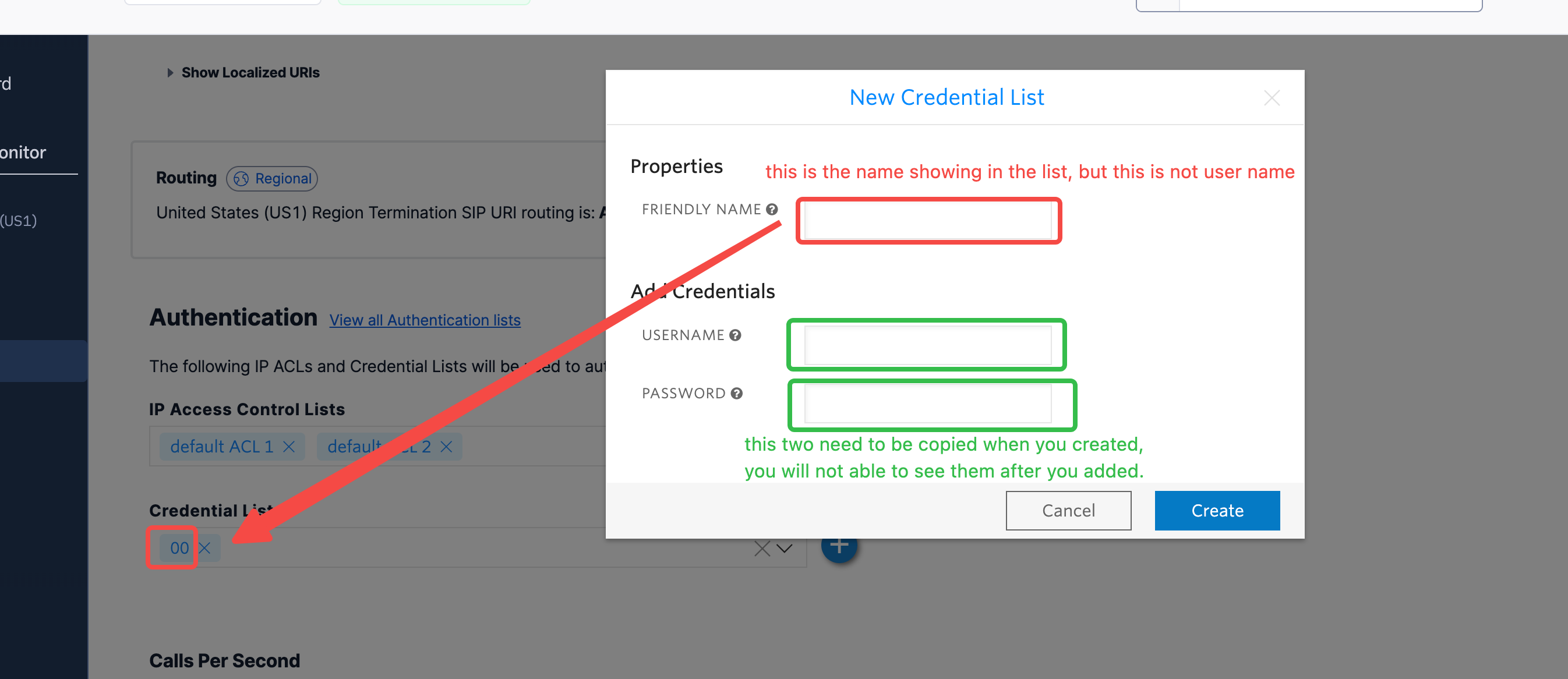
-
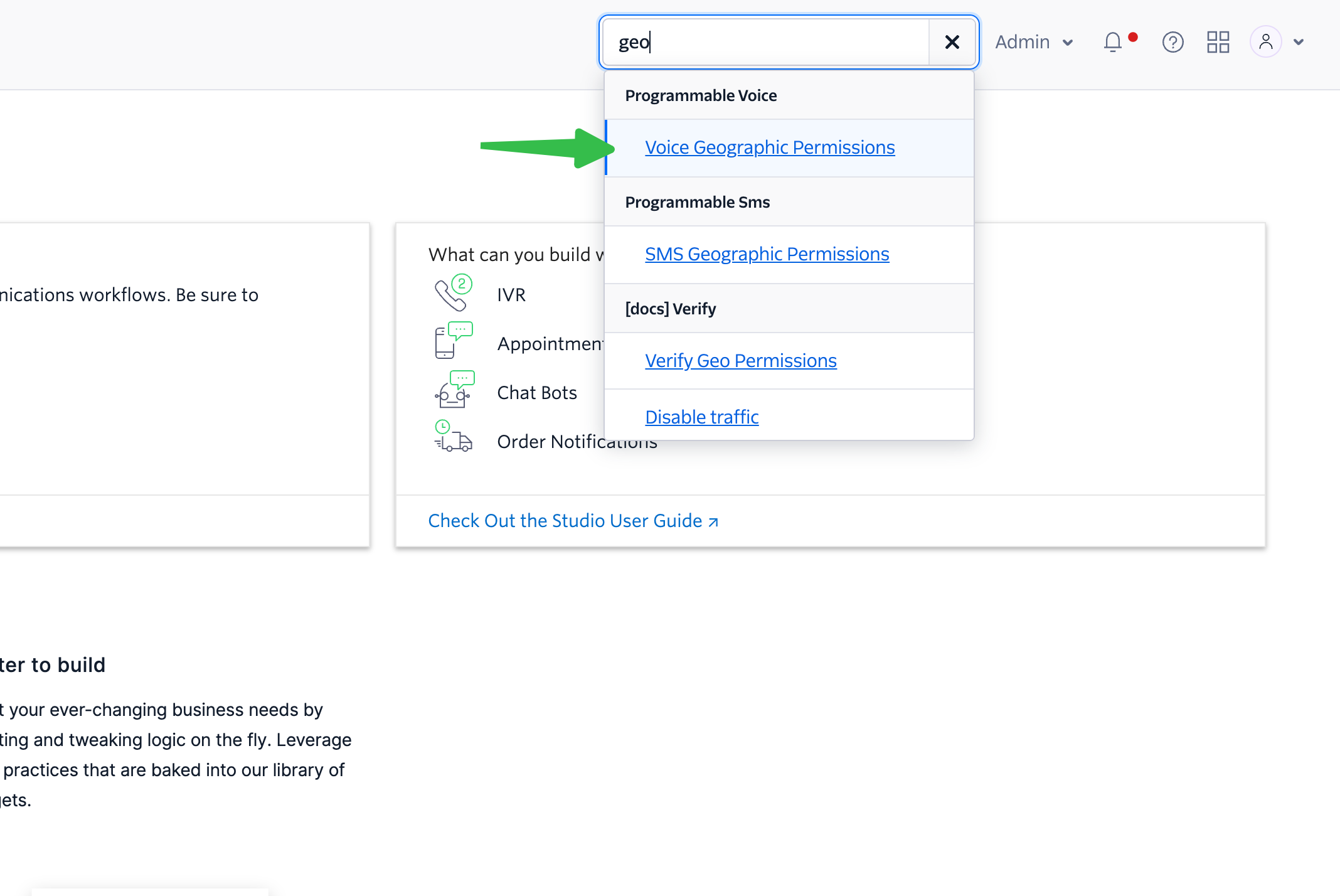
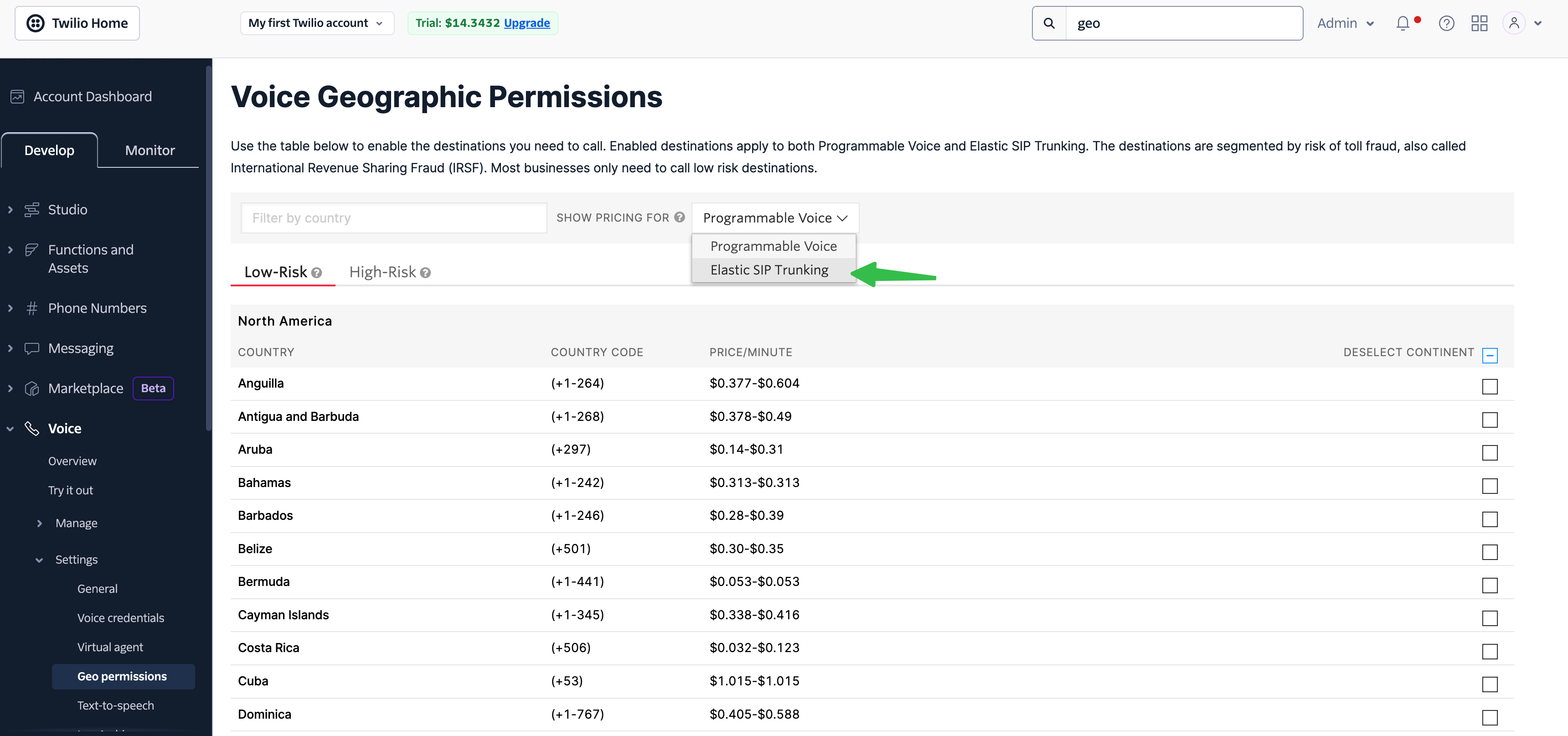
In the Twilio Console, search for “Geo” to locate the Voice Geographic Permissions settings.
-
Under the Product Selector, choose Elastic SIP Trunking and then enable the countries you want to allow for outbound dialing.
📘 Next Steps
Create Twilio Trunk Video Tutorial
Step-by-step video guide to set up a Twilio SIP trunk and connect it to Sell Agent.