
Before importing a phone number, make sure you’ve created an Elastic SIP Trunk.
If not, we’ve got you covered 👉 Refer to Create SIP Trunk to create the correct one.
If not, we’ve got you covered 👉 Refer to Create SIP Trunk to create the correct one.
🖥️ From the Dashboard
- Navigate to the Phone tab in the sidebar.
- Click on the Add button.
-
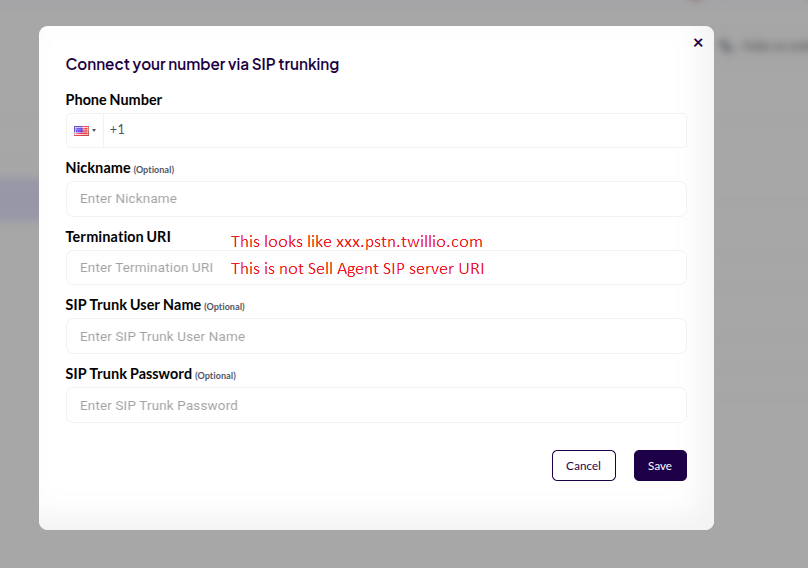
Enter the following details:
- Termination URI
- Phone Number
- SIP Credentials (Username & Password)
⚙️ From the API
You can also create a phone number programmatically using the Create Phone Number API. Here are some key points:- You can assign inbound and/or outbound agents to the number.
- If you don’t want the number to receive calls (e.g., outbound-only campaigns), you can leave
inboundAgentIdunset.