
📥 Import Bulk Contacts into Sell Agent
In Sell Agent, you can easily import or export contact data directly from the Contacts tab. This helps you manage leads in bulk.1
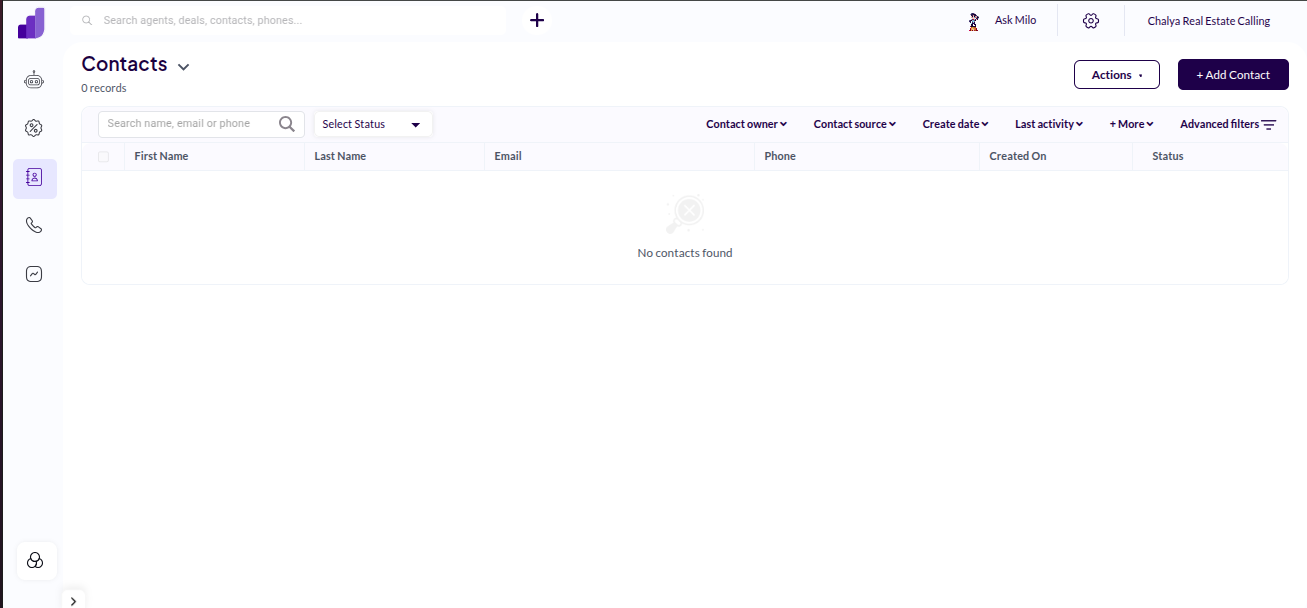
Go to the Contacts Tab
- From the left-hand menu, click on Contacts.
-
This will open your contact list view inside Sell Agent.
2
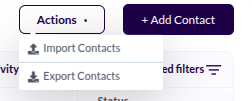
Click the Actions Button
- In the top right corner, click on the Action button.
-
A dropdown will appear with two options:
- Import Contacts
- Export Contacts
3
Import Contacts
-
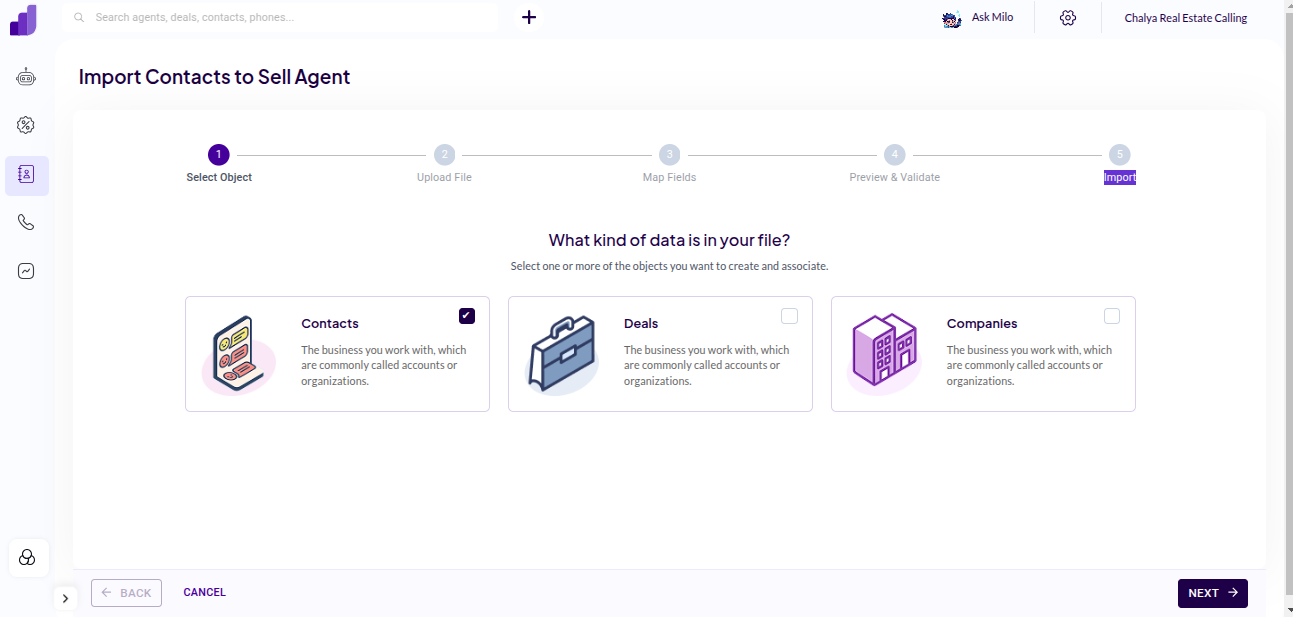
Click on Import Contacts from the dropdown. You’ll now see three options:
- Contacts
- Deals
- Companies
Select the type of data you want to import and click next.
-
Click on the Choose File button and select the
.csvfile you want to import.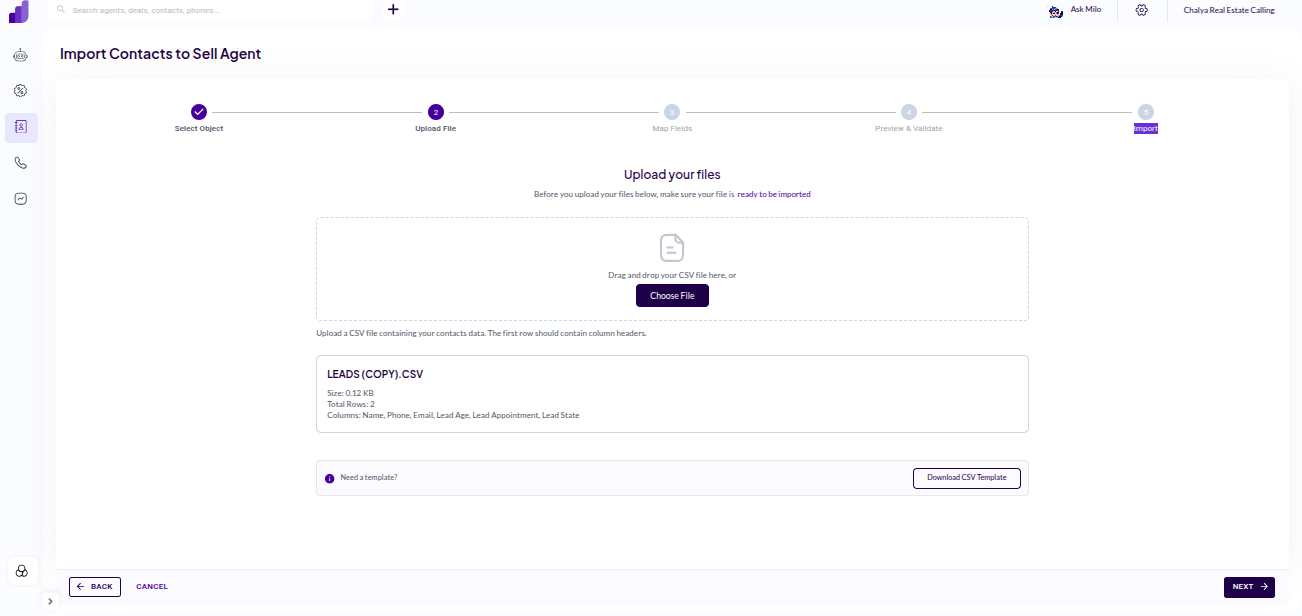
-
Sell Agent will automatically map the fields based on the headers in your CSV (e.g., Name, Email, Phone).
If any header isn’t recognized, you’ll see a warning, and you can manually map it or create a custom field.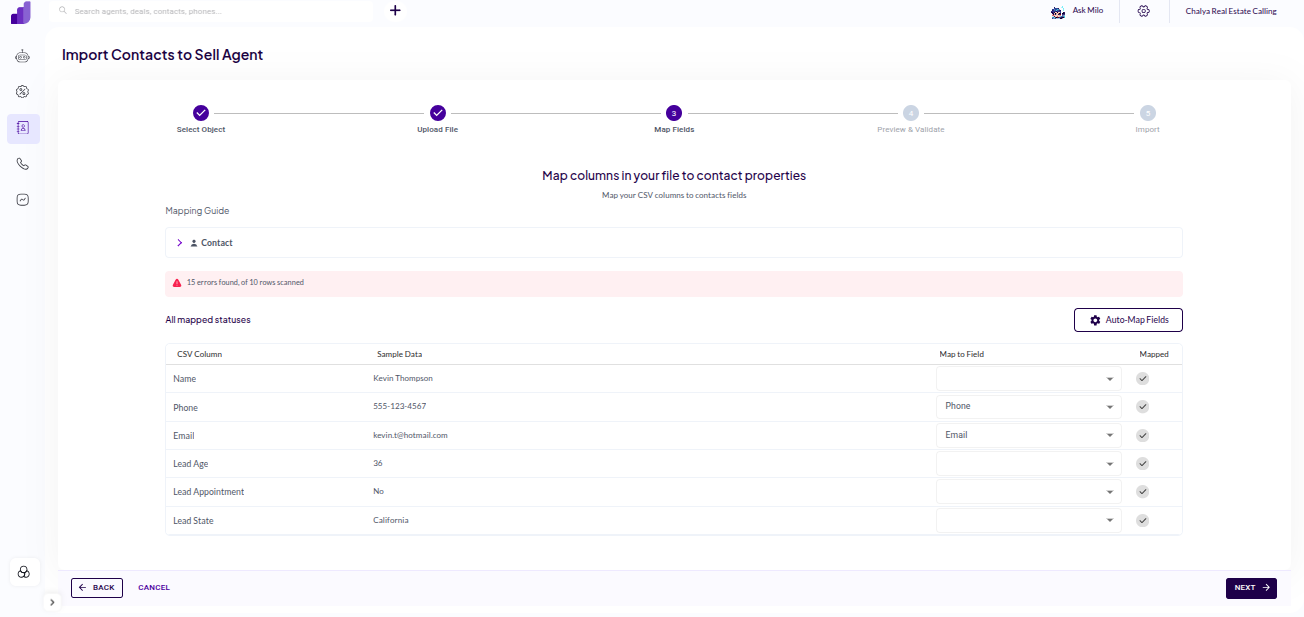
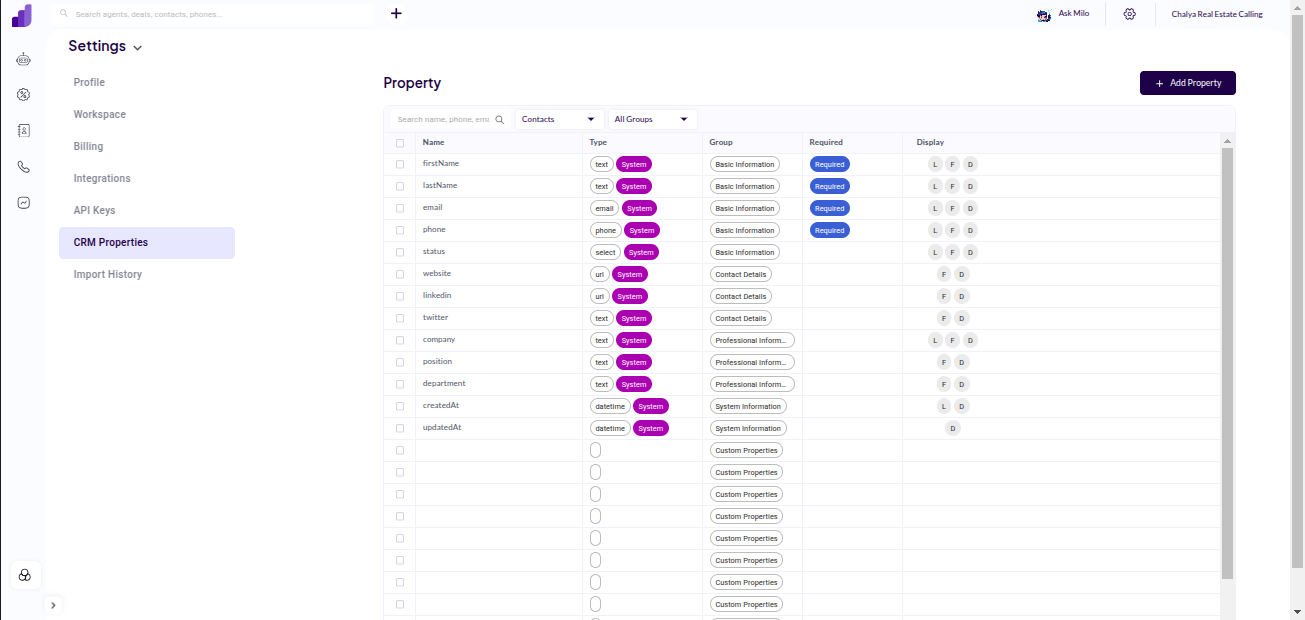
- Go to Settings on the top right conrner.
- Click on CRM Properties.
- Click on Add Property and name your custom field.
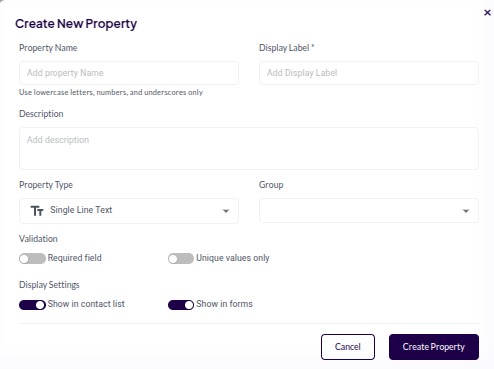
-
Once the custom property is created, go back to the mapping screen.
Select the custom property you just created for the unmatched column.
After all fields are mapped correctly, click Next to proceed. -
After mapping, you’ll be taken to a preview screen where you can review the data from your CSV file before final import.
This allows you to confirm everything looks correct.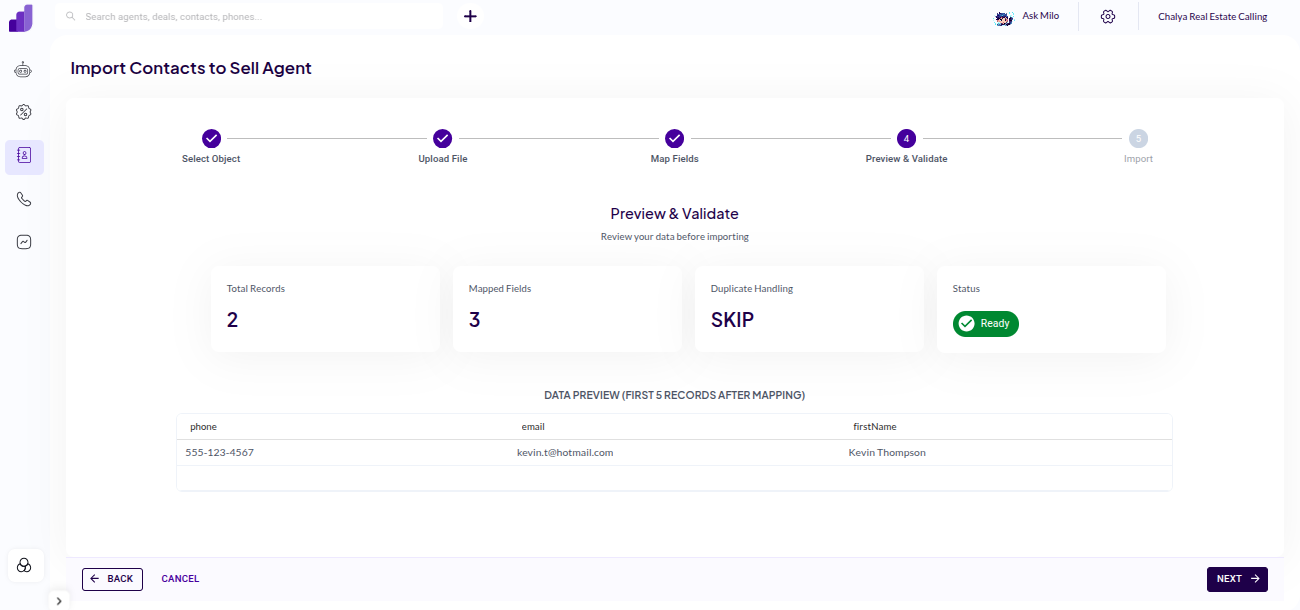
4
Export Contacts (Optional)
- Click on Export Contacts if you want to download your current contacts.
- The system will generate a
.csvfile including all the contacts you currently have in Sell Agent.