
☎️ Receive Calls
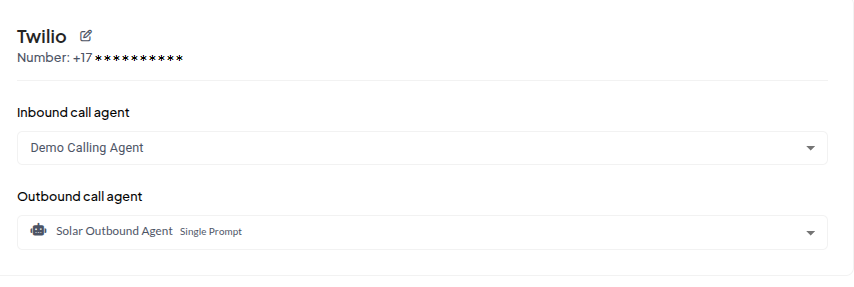
Once you’ve purchased and imported Twilio phone numbers into Sell Agent, you can start receiving inbound calls by assigning an inbound agent to the number.🔗 Bind Voice Agents
To enable inbound calling, you must bind a voice agent to the number.- You can assign separate agents for inbound and outbound calls.
- If you only want to make outbound calls and avoid callbacks, simply leave
inboundAgentIdunset. - Likewise, to disable outbound calls, leave
outboundAgentIdunset.
📥 Inbound Call Webhook
In many cases, you may want to dynamically:- Use different agents to handle inbound calls.
- Inject dynamic variables into the conversation (e.g., caller name, business name).
- Pass other context-specific data.
🛠️ Option 1: Programmatically
Set the webhook when creating or updating the agent — to review all available agent parameters, check the Update Agent API.⚙️ Option 2: Through Agent Settings UI
You can also configure the webhook directly in the dashboard under Agent Settings: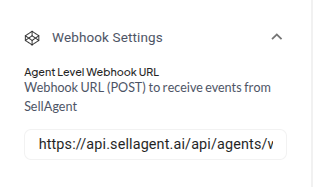
- Return a specific
agentId - Provide
dynamicVariables - Set the
language,voice, or other options dynamically